> ## Documentation Index
> Fetch the complete documentation index at: https://www.edgee.ai/docs/llms.txt
> Use this file to discover all available pages before exploring further.
# LinkedIn Conversions API
> Send your conversion events directly to LinkedIn's Conversions API (CAPI), **now at the edge**.
 Find it on GitHub: [ /edgee-ai/linkedin-capi-component](https://github.com/edgee-ai/linkedin-capi-component)
LinkedIn Conversions API (CAPI) allows you to send web events directly to LinkedIn from your server, ensuring reliable data tracking even with ad blockers or browser limitations. With Edgee's edge integration, you can now send these events directly from the edge, improving both reliability and performance.
## Event Mapping
Here's how Edgee events map to LinkedIn CAPI events:
| Edgee event | LinkedIn CAPI Event |
| ----------- | -------------------------- |
| Track | URN of the conversion rule |
LinkedIn Conversions API requires user identification data for event processing. Each event must include at least one of the following user properties:
* Email
Events without any user identification will be ignored by LinkedIn.
## User Identification
When you make a `user` call, Edgee stores the user's data (user\_id, anonymous\_id, and properties) on the device. This enables proper attribution for subsequent page views and events.
## Getting Started
**To integrate LinkedIn CAPI into your Edgee project:**
1. Open the Edgee console and navigate to your project's Components.
2. Select "Add a component" and choose `edgee/linkedin-capi` from the list of available components.
3. Enter the following credentials:
* `LinkedIn Access Token`: Your LinkedIn CAPI access token
4. Click Save to complete the setup.
To know how to get your access token , visit the [LinkedIn Marketing API documentation](https://learn.microsoft.com/en-us/linkedin/marketing/integrations/ads-reporting/conversions-api).
## Component Name
When configuring the component in your **Edgee Data Layer** or within SDK calls, use `linkedin_capi` as the component name:
```json theme={"dark"}
{
"components": {
"edgee/linkedin-capi": true
}
}
```
## Testing Your Implementation
1. Create a conversion rule for your event [https://learn.microsoft.com/en-us/linkedin/marketing/integrations/ads-reporting/conversions-api?view=li-lms-2024-11\&tabs=http#create-a-conversion-rule](https://learn.microsoft.com/en-us/linkedin/marketing/integrations/ads-reporting/conversions-api?view=li-lms-2024-11\&tabs=http#create-a-conversion-rule)
2. Add the conversion rule URN to your event payload
3. Send a test event through Edgee
4. Verify that the event is received by LinkedIn
For more details on LinkedIn Conversions API implementation, refer to the
[official LinkedIn CAPI documentation](https://learn.microsoft.com/en-us/linkedin/marketing/integrations/ads-reporting/conversions-api).
## Step by Step Set up Guide For LinkedIn CAPI
Implementing the LinkedIn Conversion API via Edgee is simple and straightforward. The next sections will guide you on:
1. How to create a conversion pixel on LinkedIn
2. How to get your access token and set up LinkedIn Conversion in Edgee
3. An implementation example
### Creating a LinkedIn Conversion API Pixel in a Nutshell
* Go to your LinkedIn Advertising account, then navigate to **Data -> Signal Manager** and select **Direct API**.
* Click on **Direct API** and then on **Create Conversion**.
* Fill in your Conversion tracking goal.
* Select the correct category for the conversion.
* In the review section, associate the CAPI conversion with your campaign.
### LinkedIn Access Token and Setup in Edgee
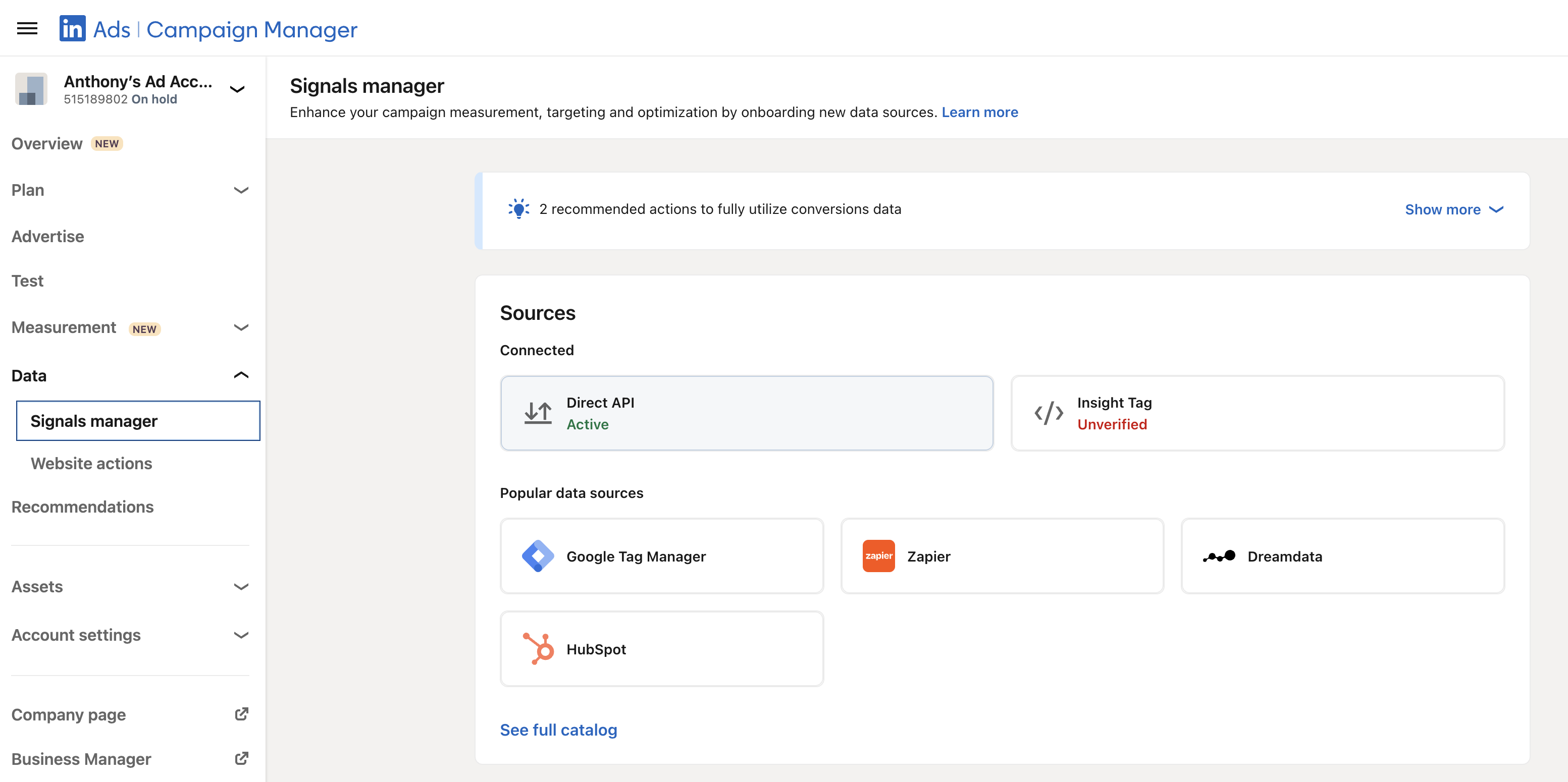
1. Go to your LinkedIn Advertising account, then navigate to **Data -> Signal Manager** and select **Direct API**.
Find it on GitHub: [ /edgee-ai/linkedin-capi-component](https://github.com/edgee-ai/linkedin-capi-component)
LinkedIn Conversions API (CAPI) allows you to send web events directly to LinkedIn from your server, ensuring reliable data tracking even with ad blockers or browser limitations. With Edgee's edge integration, you can now send these events directly from the edge, improving both reliability and performance.
## Event Mapping
Here's how Edgee events map to LinkedIn CAPI events:
| Edgee event | LinkedIn CAPI Event |
| ----------- | -------------------------- |
| Track | URN of the conversion rule |
LinkedIn Conversions API requires user identification data for event processing. Each event must include at least one of the following user properties:
* Email
Events without any user identification will be ignored by LinkedIn.
## User Identification
When you make a `user` call, Edgee stores the user's data (user\_id, anonymous\_id, and properties) on the device. This enables proper attribution for subsequent page views and events.
## Getting Started
**To integrate LinkedIn CAPI into your Edgee project:**
1. Open the Edgee console and navigate to your project's Components.
2. Select "Add a component" and choose `edgee/linkedin-capi` from the list of available components.
3. Enter the following credentials:
* `LinkedIn Access Token`: Your LinkedIn CAPI access token
4. Click Save to complete the setup.
To know how to get your access token , visit the [LinkedIn Marketing API documentation](https://learn.microsoft.com/en-us/linkedin/marketing/integrations/ads-reporting/conversions-api).
## Component Name
When configuring the component in your **Edgee Data Layer** or within SDK calls, use `linkedin_capi` as the component name:
```json theme={"dark"}
{
"components": {
"edgee/linkedin-capi": true
}
}
```
## Testing Your Implementation
1. Create a conversion rule for your event [https://learn.microsoft.com/en-us/linkedin/marketing/integrations/ads-reporting/conversions-api?view=li-lms-2024-11\&tabs=http#create-a-conversion-rule](https://learn.microsoft.com/en-us/linkedin/marketing/integrations/ads-reporting/conversions-api?view=li-lms-2024-11\&tabs=http#create-a-conversion-rule)
2. Add the conversion rule URN to your event payload
3. Send a test event through Edgee
4. Verify that the event is received by LinkedIn
For more details on LinkedIn Conversions API implementation, refer to the
[official LinkedIn CAPI documentation](https://learn.microsoft.com/en-us/linkedin/marketing/integrations/ads-reporting/conversions-api).
## Step by Step Set up Guide For LinkedIn CAPI
Implementing the LinkedIn Conversion API via Edgee is simple and straightforward. The next sections will guide you on:
1. How to create a conversion pixel on LinkedIn
2. How to get your access token and set up LinkedIn Conversion in Edgee
3. An implementation example
### Creating a LinkedIn Conversion API Pixel in a Nutshell
* Go to your LinkedIn Advertising account, then navigate to **Data -> Signal Manager** and select **Direct API**.
* Click on **Direct API** and then on **Create Conversion**.
* Fill in your Conversion tracking goal.
* Select the correct category for the conversion.
* In the review section, associate the CAPI conversion with your campaign.
### LinkedIn Access Token and Setup in Edgee
1. Go to your LinkedIn Advertising account, then navigate to **Data -> Signal Manager** and select **Direct API**.
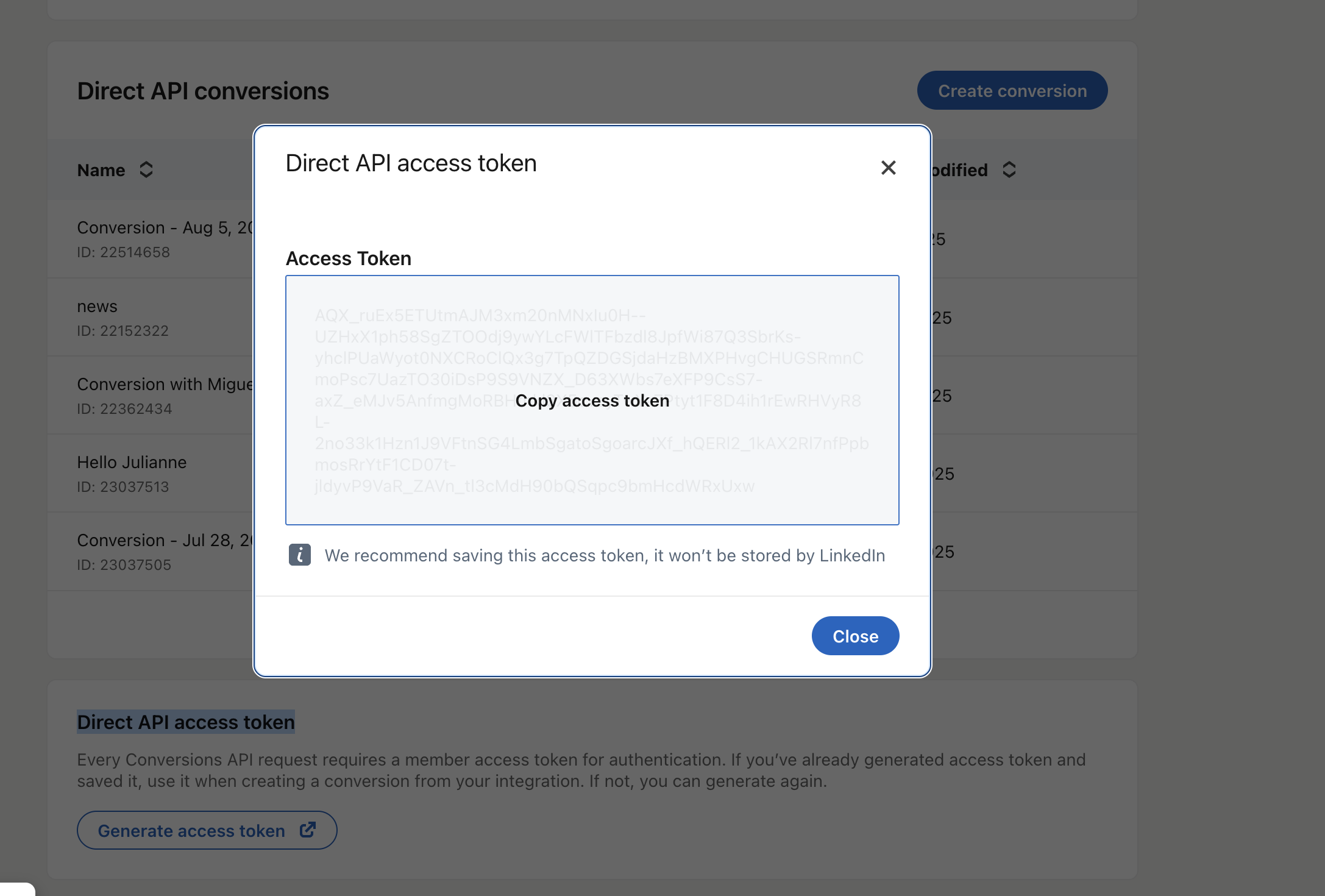
 2. Scroll down to the "**Direct API access token**" section. Follow LinkedIn's steps and copy your LinkedIn Access Token. This Access Token is consistent for all future LinkedIn CAPI implementations.
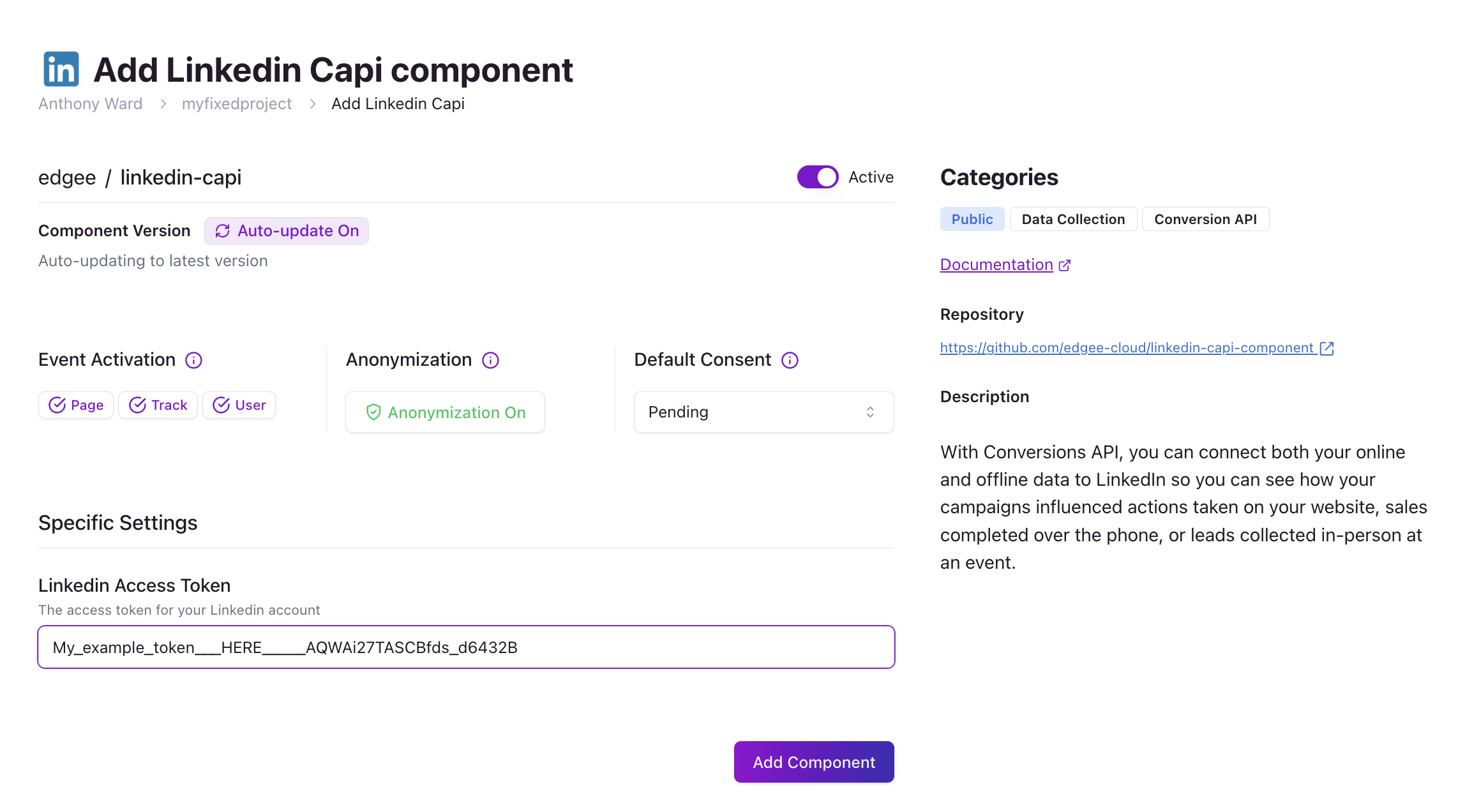
 3. Go to your Edgee account and project, then navigate to **Components** (learn to set up components [here](https://www.edgee.ai/docs/proxy/getting-started/component-configuration)). Select LinkedIn and input your token.
 ***Congratulations! Your LinkedIn CAPI is ready to be used!***
### Implementing LinkedIn CAPI
Once your LinkedIn CAPI tag is configured, it's time to implement it on your property. We have implemented LinkedIn CAPI to work alongside your InsightTag based on Microsoft's [best practices](https://learn.microsoft.com/en-us/linkedin/marketing/conversions/deduplication?view=li-lms-2025-07) to ensure conversion deduplication.
To implement your CAPI, you will need the conversion ID:
1. Go to your LinkedIn Advertising Account -> Data -> Signal Manager and click on Direct API.
You will find your conversion pixel that can be used for CAPI, and an associated ID will be displayed under the name of your conversion pixel. Please ensure you collect and use the correct one!
***Congratulations! Your LinkedIn CAPI is ready to be used!***
### Implementing LinkedIn CAPI
Once your LinkedIn CAPI tag is configured, it's time to implement it on your property. We have implemented LinkedIn CAPI to work alongside your InsightTag based on Microsoft's [best practices](https://learn.microsoft.com/en-us/linkedin/marketing/conversions/deduplication?view=li-lms-2025-07) to ensure conversion deduplication.
To implement your CAPI, you will need the conversion ID:
1. Go to your LinkedIn Advertising Account -> Data -> Signal Manager and click on Direct API.
You will find your conversion pixel that can be used for CAPI, and an associated ID will be displayed under the name of your conversion pixel. Please ensure you collect and use the correct one!
 2. Once you have the ID, you can use the conversion to track in two different ways using our SDK:\
a. Track the conversion of a user when you have their email address (e.g., from a form submission).\
b. Track standard landing page conversions without having the user's email.
### Example: Tracking a form submission where you have an email address:
1. You will need to track the user event with their email (please note, the Edgee component will SHA256 when sending to LinkedIn)
```javascript theme={"dark"}
edgee.user({"properties": {"email": "me@example.com"}});
```
2. Once a user event has been executed, you will trigger a track event to track the conversion in LinkedIn:
```javascript theme={"dark"}
edgee.track({ name: "urn:lla:llaPartnerConversion:[YOUR_CONVERSION_PIXEL_ID]"});
```
Note: replace `[YOUR_CONVERSION_PIXEL_ID]` with your LinkedIn CAPI ID.
```
```
### Example: Tracking standard landing page conversion without having the user’s email
When a user lands on the page from LinkedIn, LinkedIn will provide a `li_fat_ID` to track the user. If this is NOT present, then Edgee will not be able to track the conversion.
The implementation of these events, such as Landing Page, is very straightforward.
Note: replace `[YOUR_CONVERSION_PIXEL_ID]` with your LinkedIn CAPI ID.
```
```
#### Example: use alongside InsightTag for deduplication
If you have InsightTag and want your LinkedIn CAPI to work alongside InsightTag, `event_id` can be used to deduplicate conversions.
1. Create a JavaScript that will generate a unique number for every new event.
2. Update the Edgee track SDK to collect `event_id` by adding it to the properties (shown below) and ensure the ID is also provided to your InsightTag.
```javascript theme={"dark"}
edgee.track( {
name: "urn:lla:llaPartnerConversion:[YOUR_CONVERSION_PIXEL_ID]",
properties: {event_id: "1234543"}
});
```
Note: replace `[YOUR_CONVERSION_PIXEL_ID]` with your LinkedIn CAPI ID.
2. Once you have the ID, you can use the conversion to track in two different ways using our SDK:\
a. Track the conversion of a user when you have their email address (e.g., from a form submission).\
b. Track standard landing page conversions without having the user's email.
### Example: Tracking a form submission where you have an email address:
1. You will need to track the user event with their email (please note, the Edgee component will SHA256 when sending to LinkedIn)
```javascript theme={"dark"}
edgee.user({"properties": {"email": "me@example.com"}});
```
2. Once a user event has been executed, you will trigger a track event to track the conversion in LinkedIn:
```javascript theme={"dark"}
edgee.track({ name: "urn:lla:llaPartnerConversion:[YOUR_CONVERSION_PIXEL_ID]"});
```
Note: replace `[YOUR_CONVERSION_PIXEL_ID]` with your LinkedIn CAPI ID.
```
```
### Example: Tracking standard landing page conversion without having the user’s email
When a user lands on the page from LinkedIn, LinkedIn will provide a `li_fat_ID` to track the user. If this is NOT present, then Edgee will not be able to track the conversion.
The implementation of these events, such as Landing Page, is very straightforward.
Note: replace `[YOUR_CONVERSION_PIXEL_ID]` with your LinkedIn CAPI ID.
```
```
#### Example: use alongside InsightTag for deduplication
If you have InsightTag and want your LinkedIn CAPI to work alongside InsightTag, `event_id` can be used to deduplicate conversions.
1. Create a JavaScript that will generate a unique number for every new event.
2. Update the Edgee track SDK to collect `event_id` by adding it to the properties (shown below) and ensure the ID is also provided to your InsightTag.
```javascript theme={"dark"}
edgee.track( {
name: "urn:lla:llaPartnerConversion:[YOUR_CONVERSION_PIXEL_ID]",
properties: {event_id: "1234543"}
});
```
Note: replace `[YOUR_CONVERSION_PIXEL_ID]` with your LinkedIn CAPI ID.