> ## Documentation Index
> Fetch the complete documentation index at: https://www.edgee.ai/docs/llms.txt
> Use this file to discover all available pages before exploring further.
# Start with your coding agent
> Install Edgee and its aliases, launch your coding agent as usual, and verify your first session.
Route your coding agent through Edgee, then find its requests in the console. You need an Edgee account, access to an organization, and the coding agent installed on your computer.
```bash theme={"dark"}
curl -fsSL https://edgee.ai/install.sh | bash
# Accept the alias prompt (recommended).
# If skipped: edgee alias
# Reopen your terminal afterward.
```
```bash theme={"dark"}
brew install edgee-ai/tap/edgee
# Enable aliases (recommended).
edgee alias
# Reopen your terminal afterward.
```
```powershell theme={"dark"}
irm https://edgee.ai/install.ps1 | iex
# Enable aliases (recommended).
edgee alias
# Reopen your terminal afterward.
```
Run `edgee --version`. If the command is missing, reopen your terminal before continuing.
Your **harness** is the coding tool you already use, such as Claude Code, Codex, OpenCode, or Cursor. Edgee launches that tool and routes its model requests through the gateway. Keep working in the same tool; inspect its usage in Edgee.
**With aliases installed, keep using your usual terminal command.** For example, `claude` now launches Claude Code through Edgee. You can also use `edgee launch ` explicitly. Both paths use Edgee.
Run your chosen harness from your project directory:
| Harness | With aliases installed | Explicit launch |
| ----------------------------------------- | ---------------------- | -------------------------- |
| Claude Code | `claude` | `edgee launch claude` |
| Codex | `codex` | `edgee launch codex` |
| OpenCode | `opencode` | `edgee launch opencode` |
| CodeBuddy | `codebuddy` | `edgee launch codebuddy` |
| Crush | `crush` | `edgee launch crush` |
| Pi | `pi` | `edgee launch pi` |
| [Oh My Pi](/docs/agents/omp) | `omp` | `edgee launch omp` |
| [GitHub Copilot CLI](/docs/agents/copilot-cli) | No Edgee alias | `edgee launch copilot-cli` |
| Kimi Code | `kimi` | `edgee launch kimi` |
| Kilo Code | `kilo` | `edgee launch kilo` |
Pass your usual arguments after the command, for example `claude --resume` or `edgee launch claude --resume`.
Launch the editor through Edgee:
| Harness | Command |
| -------------------------------------------------------------------- | ------------------------------ |
| Cursor | `edgee launch cursor` |
| GitHub Copilot in VS Code | `edgee launch copilot-vscode` |
| [GitHub Copilot in IntelliJ IDEA](/docs/agents/copilot-intellij) **Beta** | `edgee launch intellij` |
| [GitHub Copilot Desktop](/docs/agents/copilot-desktop) **Beta** | `edgee launch copilot-desktop` |
| [Claude Desktop](/docs/agents/claude-desktop) **Beta** | `edgee launch claude-desktop` |
| [Codex Desktop](/docs/agents/codex-desktop) **Beta** | `edgee launch codex-desktop` |
Where supported, `edgee alias` also installs app-menu shortcuts such as **Cursor (Edgee)** and **VS Code Copilot (Edgee)**. Open the **(Edgee)** shortcut when launching from your app menu. See [desktop shortcuts](/docs/cli/aliases).
Run `edgee launch --help` for all targets available in your installed version. Install the harness itself before launching it through Edgee.
**On your first launch**, Edgee starts sign-in automatically if needed. Complete it in the browser, return to the terminal, and select your organization when prompted. If your company invited you, accept the invitation using the same account first.
Ask a small question, such as “Explain the purpose of this repository.” Let the harness complete at least one model request before checking the session.
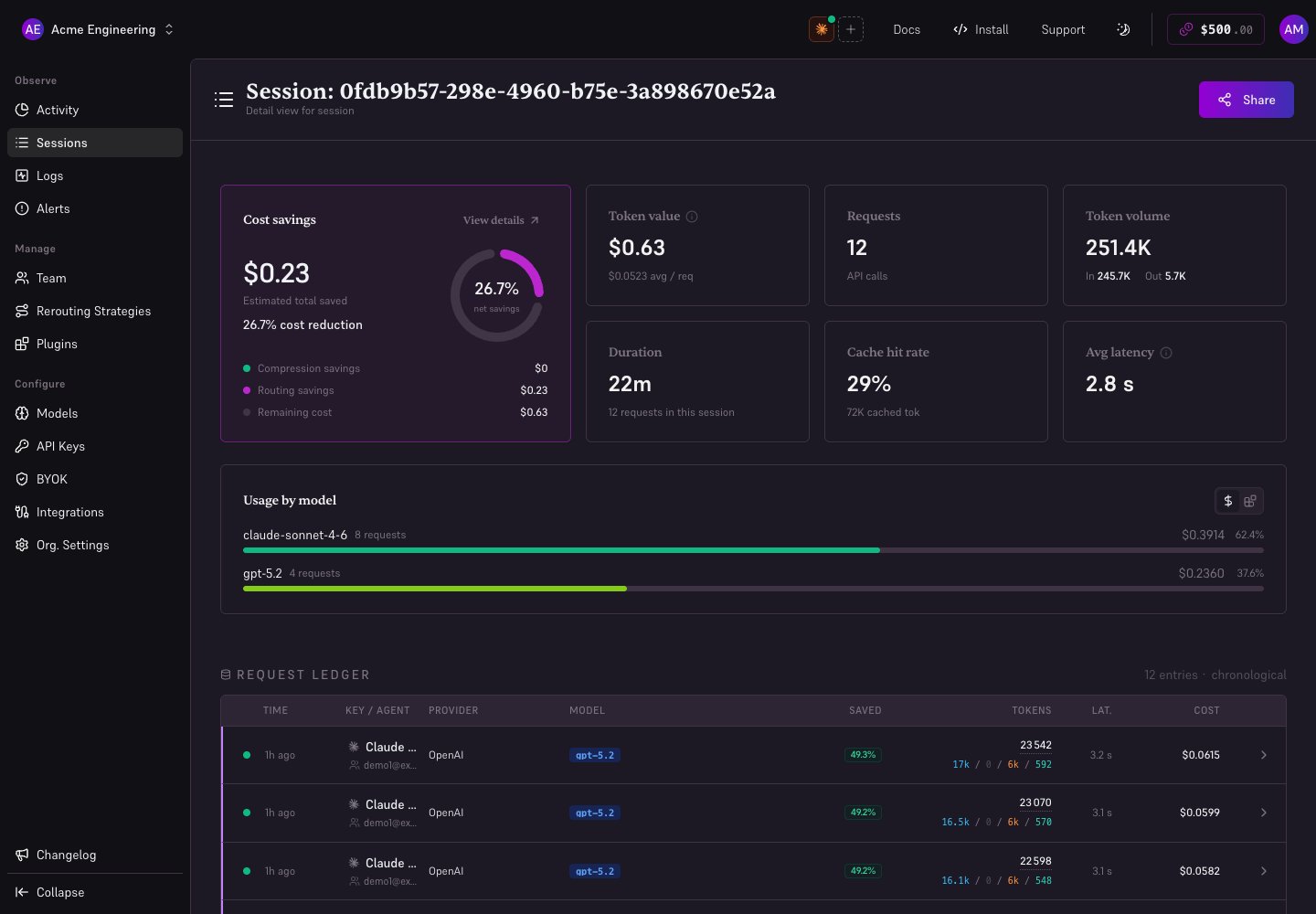
Open the [console](https://www.edgee.ai), select the same organization, and open **Sessions**. Find your recent session and check its agent, requests, model usage, and cost.
After the agent exits, use the report link printed by the CLI or run `edgee stats`. A launch with no model traffic may have no session report. See [Troubleshooting](/docs/troubleshooting) if you cannot find it.
Edgee works with your existing Claude, Codex, and Cursor subscriptions. Keep your subscription when launching your assistant through Edgee.
 ## Remove aliases
To restore your usual commands without Edgee:
```bash theme={"dark"}
edgee alias remove
```
Reopen your terminal afterward. You can still launch through Edgee explicitly with `edgee launch claude`. See [Aliases and desktop shortcuts](/docs/cli/aliases) for per-agent setup and removal.
## Next steps
* [Use the CLI day to day](/docs/features/cli): profiles, settings, aliases, and updates.
* [Read a session](/docs/features/observability/sessions): requests, savings, and sharing.
* [Deploy to a team](/docs/quickstart/team): invitations, squads, and routing budgets.
* [Choose another integration](/docs/agents/cursor): connect an editor or use the integration pages in the sidebar.
## Remove aliases
To restore your usual commands without Edgee:
```bash theme={"dark"}
edgee alias remove
```
Reopen your terminal afterward. You can still launch through Edgee explicitly with `edgee launch claude`. See [Aliases and desktop shortcuts](/docs/cli/aliases) for per-agent setup and removal.
## Next steps
* [Use the CLI day to day](/docs/features/cli): profiles, settings, aliases, and updates.
* [Read a session](/docs/features/observability/sessions): requests, savings, and sharing.
* [Deploy to a team](/docs/quickstart/team): invitations, squads, and routing budgets.
* [Choose another integration](/docs/agents/cursor): connect an editor or use the integration pages in the sidebar.