

edgee launch claude, edgee launch codex, or edgee launch opencode, the CLI assigns a unique session ID and captures every request that flows through the gateway during that run. When the session ends, you get a link to a detailed report.
What’s tracked
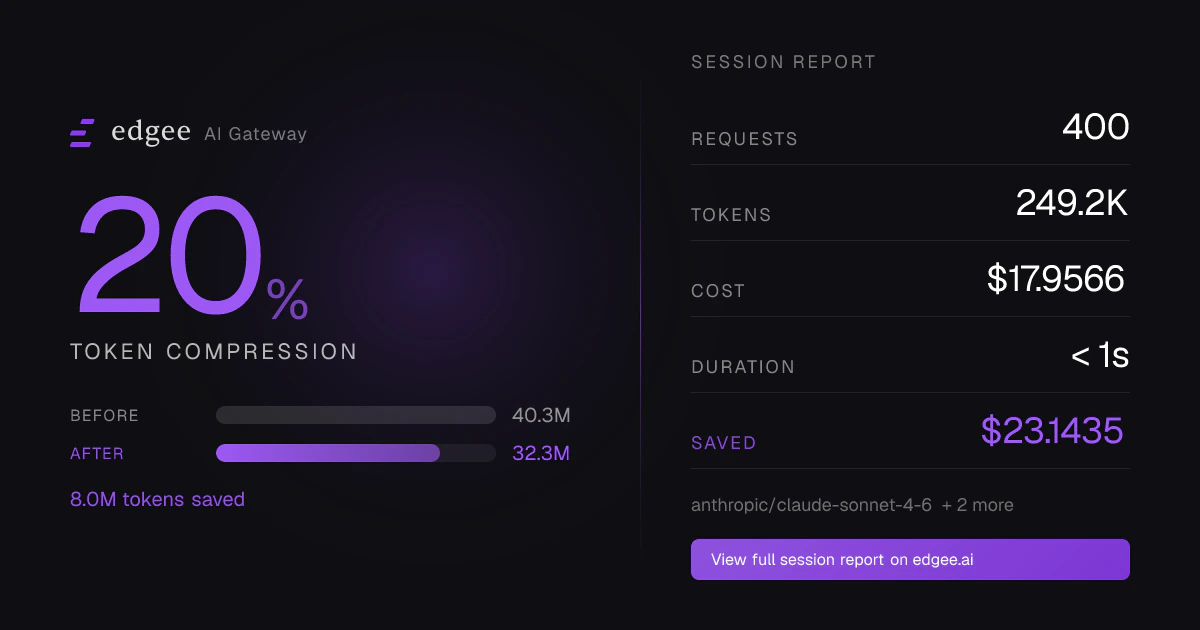
Each session records:- Tokens — input, output, total, with per-model breakdown
- Cost — dollar cost computed from real-time provider pricing
- Compression — tokens saved, % reduction, and savings broken down by tool
- Requests — count, errors, average response time, request cadence over time
- Duration — first to last request
- Models used — distribution across Claude, GPT, etc.
Two views: private and public
Every session has two URLs.Private view (org)
/~/<org-slug>/sessions/<session-id> — visible only to authenticated members of your organization.
This is the full view: editable session name, GitHub repo / PRs / commits, request-level logs, error breakdown,
CLI version, request cadence sparkline.
Public view
/sessions/<session-id> — anyone with the URL can view.
The public page shows:
- Your name and avatar (from the API key’s owner)
- Total requests, tokens, cost, duration
- Models used and compression savings
- Per-tool compression breakdown
Sharing
From the session page in the console, click Share to:- Copy link to the public URL
- Post to X / LinkedIn with a pre-filled card
- Open Graph preview — when posted to social platforms, the link unfurls into a card showing compression % or token / cost / request stats
Linking sessions to GitHub
Sessions can be tied to the actual code work they produced — the repository, the pull requests opened or edited, and the commits made. Once linked, the session report shows clickable links to GitHub right next to the token and cost stats.Prerequisite: install the Edgee GitHub App
GitHub repository linking only works for repos your organization has connected via the Edgee GitHub App. Without the App, calls tosetSessionGitRepo naming a GitHub repo are silently ignored (the API returns ignored) and no repo appears on the
session page. Repositories on other hosts — GitLab, Bitbucket, Azure DevOps — are stored as-is and need no App.
To install:
- Go to Settings → Access → GitHub in the Edgee Console
- Click Install GitHub App and select the org and repos you want to link
- Approve on GitHub
What gets shown
Once a session has GitHub metadata attached, the private session page displays:- Repo —
owner/repo, linked to GitHub - Pull requests — every PR URL or
#numberattached during the session, clickable - Commits — every commit SHA or commit URL, clickable
How metadata gets attached
The agent attaches GitHub metadata itself: Claude Code or Codex calls the MCP tools below during the session. The MCP tools are documented in the next section.Enriching sessions with MCP tools
When you run Claude Code or Codex through Edgee, the agent has access to four MCP tools that attach metadata to the running session.
All four require the session ID, which the CLI exposes to the agent automatically.
Example: agent self-tags its work
In aCLAUDE.md or system prompt, you can instruct the agent:
addSessionPullRequest and addSessionCommit are append-only and de-duped. Calling them multiple times with the
same value is safe.Finding past sessions
- CLI —
edgee statslists your most recent sessions - Console —
/~/<org-slug>/sessionsshows the full list with filtering and search - End-of-run link — every
edgee launchprints the session URL when the agent exits
Next steps
- Edgee CLI — launch agents and start a session
- Observability — aggregate metrics across all sessions
- Team management — see sessions across your whole team